
Hi everyone,
Here is your boy Ravi, and today I will let you know about the installation of Jmeter on the Window.
Are you ready to start performance testing with JMeter? This step-by-step guide will walk you through everything you need to know about installing JMeter on your machine. Whether you’re a beginner or just looking to refresh your knowledge, we’ve got you covered!
What is Apache JMeter?
Apache JMeter is an open-source tool designed to load test functional behavior and measure performance. It’s widely used for testing web applications, APIs, databases, and more. Before we dive into the installation, let’s briefly understand why you should use JMeter.
Why Use Apache JMeter?
a. Open-source & Free: No license costs, and it has a vibrant community.
b. Versatile: Can be used for testing a wide variety of applications.
c. User-friendly: GUI-based with an intuitive interface.
d. Supports multiple testing types: Load, performance, stress, and functional testing.
System Requirements for Installing JMeter
Before we get started, ensure your system meets the following requirements:-
1. Java Development Kit (JDK) installed (minimum version 8).
2. Supported operating systems: Windows, Linux, and MacOS.
Step 1: Install Java (JDK)
Since JMeter is a Java-based tool, you’ll need to install the Java Development Kit (JDK) first. Here’s how:
1. Download JDK: Visit the official Oracle website and download the JDK version suitable for your system.
2. Install the JDK
On Windows: Follow the on-screen instructions after downloading the .exe file.
On MacOS: Open the downloaded .dmg file and follow the steps to install.
On Linux: Use the following command:
sudo apt install openjdk-8-jdk
3. Set Java Environment Variables (Windows)
a. Right-click on This PC > Properties > Advanced system settings > Environment Variables.
b. Add a new variable with:
b(1) Variable name: JAVA_HOME
b(2) Variable value: Location of your JDK installation.
To check if Java is installed correctly, open your terminal or command prompt and type.
java -version
Step 2: Download Apache JMeter
Now that you have Java set up, the next step is downloading JMeter.
1. Go to the official JMeter website: Download Apache JMeter.
2. Choose the Binary Download: Pick the latest stable release and download the binary file (not the source).
The file will be a .zip or .tgz file.
Step 3: Install Apache JMeter
Once JMeter is downloaded, follow these steps to install it:
1. Unzip the file.
a. On Windows, right-click the .zip file and select Extract All.
b. On Mac/Linux, use the terminal command:
tar -xvzf apache-jmeter-<version>.tgz
2. Navigate to the JMeter folder – After extracting, open the JMeter folder.
3. Run JMeter.
a. On Windows: Double-click on the jmeter.bat file in the bin folder.
b. On Mac/Linux: Open the terminal and navigate to the bin directory, then run:
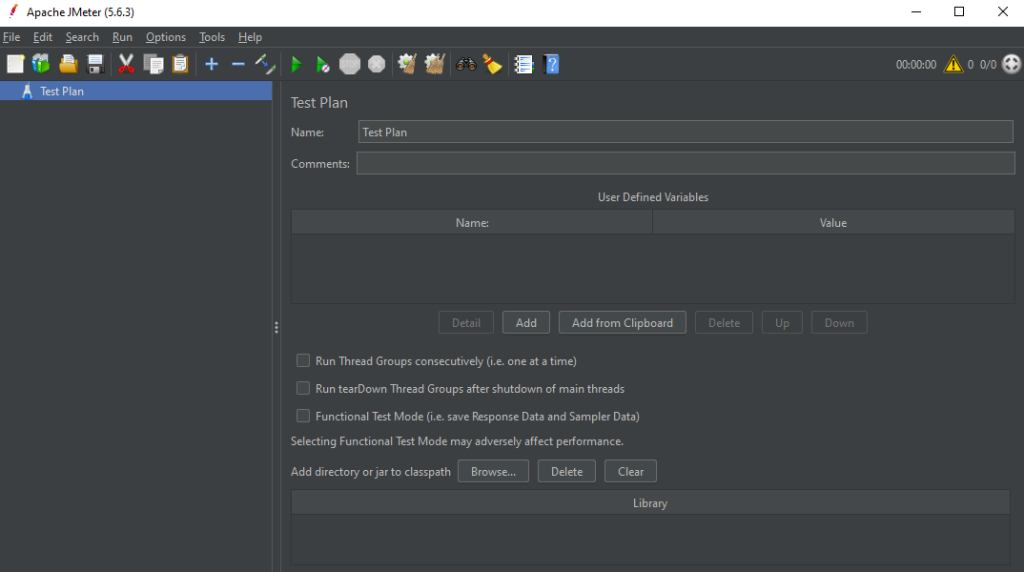
./jmeter.sh4. JMeter GUI – Once JMeter starts, you should see the GUI. Congratulations! You’ve successfully installed JMeter.
Step 4: Verify the Installation
Let’s make sure everything is working correctly.
1. Open JMeter as described above.
2. Create a simple test plan:
2(a) Add a Thread Group, HTTP Request, and View Results Tree to test if everything functions as expected.
3. Run the test plan and check the results.
Troubleshooting Tips
1. Java not recognized: Ensure Java is installed and correctly set in your environment variables.
2. JMeter not opening: Double-check the Java installation and JMeter path. If on Linux, make sure the .sh file is executable.
Conclusion
Now that you’ve successfully installed Apache JMeter, you’re ready to begin testing! This powerful tool can help you simulate real-world user traffic and ensure your web applications perform under load.
If you found this guide helpful, please share it with your colleagues or anyone new to performance testing. Feel free to leave a comment if you have any questions or run into any issues. Happy testing!
